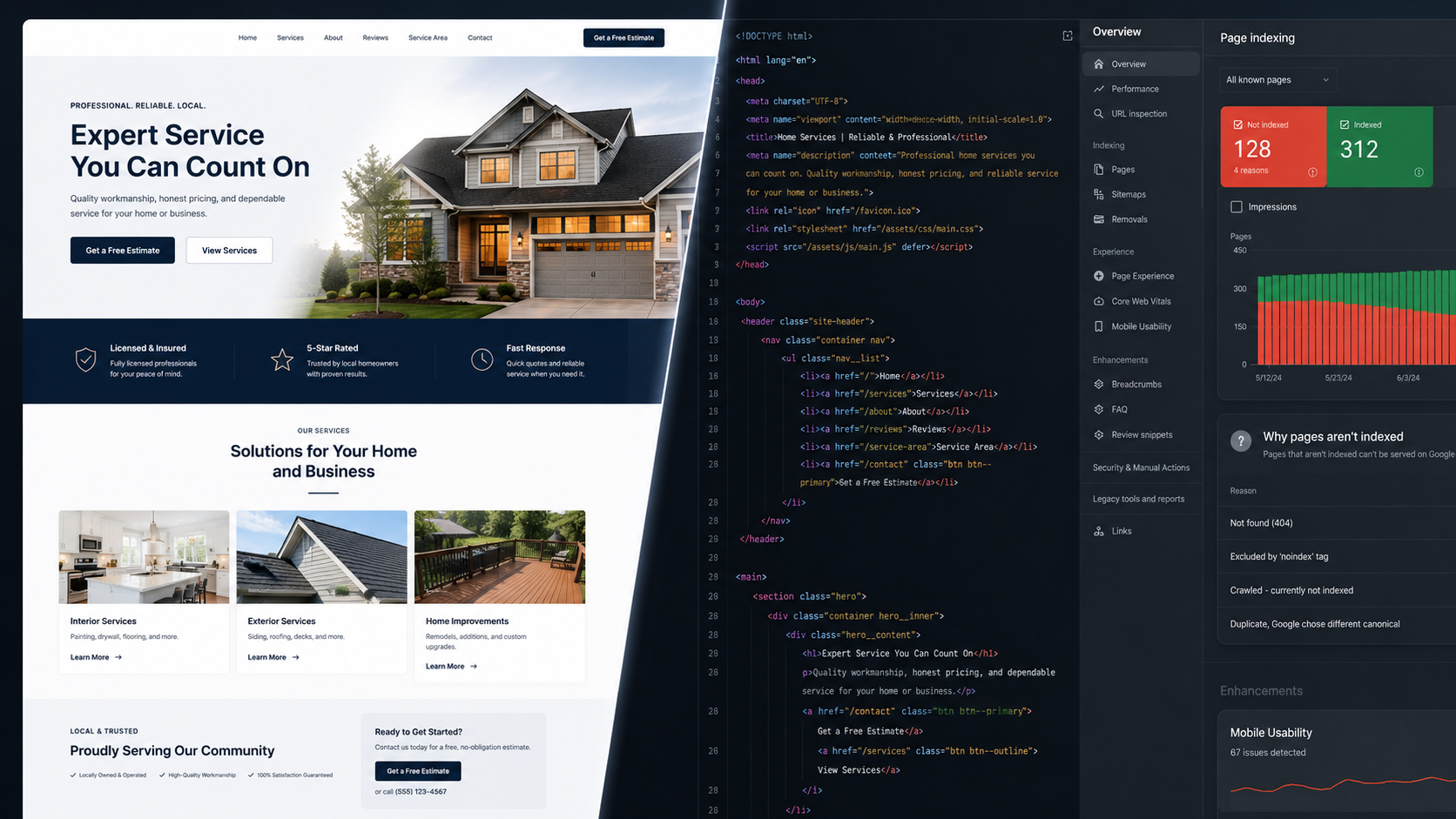
Google doesn’t see your website the way your customers do. It reads code, follows links, and measures load signals — and a site that looks polished to a human visitor can have serious problems that are completely invisible to the eye.
This matters for a specific reason: most local businesses evaluate their website by looking at it. It loads. It looks professional. The services are listed. The phone number is there. On that basis, the website seems fine.
Google evaluates the same site differently. It sends a crawler that reads the underlying code, attempts to follow every internal link, checks whether pages are permitted to be indexed, measures how long the largest element takes to load, and assesses whether the content it finds matches what a human visitor would see. A site that passes the visual inspection can fail several of those checks simultaneously, ranking poorly for reasons the business owner has never been told about.
These are the six most common technical problems on local service websites, how to check for each one, and what each costs you in rankings.
Table of Contents
| A site that looks professional and loads quickly can still be nearly invisible to Google. The problems are in the code, not the design. |
How Google Reads a Website (Versus How You Do)
Understanding the perception gap is the foundation of everything else in this post.
When you visit your website, your browser downloads the page files, executes any JavaScript, renders the visual design, and displays the result. You see a finished page. You scroll, click, and judge it as a human would.
When Google’s crawler visits the same page, it reads the HTML source code, follows the links it finds, notes what text content is present, checks the page’s technical metadata, and records load performance signals. It does not experience the visual design. It does not react to how things look. It only processes what the code explicitly provides.
The gap between those two experiences is where technical SEO problems live.
| What a Visitor Sees | What Google Reads |
| A polished hero image with your logo | An image file. No text unless alt text is present. |
| A full-screen animated intro | JavaScript that may or may not execute before indexing |
| Services listed in a clean dropdown menu | Navigation links — only if they’re in crawlable HTML |
| A fast-loading page | LCP score: time until largest element is visible to the crawler |
| Your complete About page | Possibly nothing, if the page is accidentally set to noindex |
| A portfolio of completed projects | Images with no text context if alt text is missing |
Problem 1: Pages Accidentally Blocked From Indexing
This is the most damaging technical SEO problem on local service websites, and the one most likely to go undetected for months or years. A page set to noindex is a page Google is explicitly told not to include in search results, even if the page is live, loads correctly, and looks perfect to a visitor.
How it happens: during website development, developers commonly set entire sites to noindex to prevent a half-built site from appearing in search results. When the site launches, that setting is supposed to be removed. Often it isn’t. Or it’s removed from the homepage but left on individual service pages. Or a plugin update resets it. The page stays live and accessible, but Google never shows it to anyone searching.
How to check: in Google Search Console, navigate to the Coverage report (now called the Indexing report in newer versions). Any URLs listed under ‘Excluded’ with the reason ‘Excluded by noindex tag’ are pages Google has been told to ignore. You can also check individual pages by viewing the page source and searching for noindex in the meta robots tag, or by using Google’s URL Inspection tool to check any specific page.
| Quick Noindex Check 1. Go to Google Search Console → Indexing → Pages 2. Look at the ‘Not indexed’ section 3. Filter for ‘Excluded by noindex tag’ 4. Any service pages or blog posts appearing here are invisible to Google This takes under two minutes and often reveals pages that have been invisible since the site launched. |
Problem 2: Images With No Alt Text
Google cannot read images. It reads text. A website page built primarily around photos (a portfolio page, a before/after gallery, a team page) contains almost no content from Google’s perspective if the images don’t have descriptive alt text.
Alt text is a short text description added to each image in the HTML. It was originally designed for screen readers used by visually impaired visitors, but search engines use it as the primary signal for understanding what an image depicts and how it relates to the page’s content.
For a local service business, this matters in several specific ways:
- Portfolio and project pages. If your strongest proof of work is a gallery of before/after photos with no alt text, those pages have almost no text content for Google to evaluate. A roofing company with 40 project photos and one paragraph of text has a thin page by Google’s measure, regardless of how much visual information it contains.
- Team pages. A page with headshots and names but no descriptive text around each person is a weak page. Adding brief bios and role descriptions turns it into a page with substantive content and entity signals.
- Homepage hero images. The first image Google encounters on your homepage should have alt text that includes your primary service and location. ‘Johnson City HVAC company service van’ is a meaningful signal. ‘image001.jpg’ contributes nothing.
How to check: right-click any image on your site and select ‘Inspect.’ Look for the alt= attribute in the image tag. If it’s empty (alt=””) or missing entirely, that image is contributing nothing to your page’s content signals.
Problem 3: JavaScript Content Google Doesn’t Load
Modern websites frequently use JavaScript to display content: testimonials loaded from a third-party widget, service descriptions revealed on click, pricing tables rendered dynamically, or reviews pulled from an external source.
Google can execute JavaScript, but it doesn’t always do so on every page visit, and it crawls JavaScript-heavy pages on a different schedule than static HTML pages. Content that only exists in JavaScript (meaning it’s not present in the HTML source code before the JavaScript runs) may be invisible to Google’s crawler or indexed inconsistently.
For most local service businesses, the highest-risk version of this problem is review widgets. A third-party widget that pulls in Google or Yelp reviews and displays them on your homepage looks like valuable social proof to a visitor. To Google’s crawler, it may appear as an empty container. The review content that you’re counting on as a trust signal isn’t being read by the algorithm.
How to check: in your browser, right-click the page and select ‘View Page Source’ (not ‘Inspect,’ which shows the rendered DOM after JavaScript runs). In the raw source, search for key phrases that should appear in your JavaScript-loaded content. If the text isn’t in the source, Google may not be reading it.
| Content that loads via JavaScript may be invisible to Google’s crawler. If it’s not in the HTML source, it may not count. |
Problem 4: Slow Largest Contentful Paint
Core Web Vitals are Google’s set of user experience metrics that influence rankings. Of the three, Largest Contentful Paint (LCP) is the one that most consistently correlates with ranking differences for local service websites.
LCP measures how long it takes for the largest visible element on the page to load fully. For most local service sites, that element is the hero image at the top of the homepage. If that image is a large, uncompressed file, LCP is slow. If it’s a compressed image served in a modern format from a fast host, LCP is fast.
The perception gap here is significant: a page can feel fast to a visitor because text loads first and the overall experience seems smooth, while the LCP score is technically poor because the hero image took four seconds to fully render. The visitor didn’t notice. Google did.
- Uncompressed images. A homepage hero image served at its original file size rather than compressed for web. This is the most common LCP problem on local service websites. Images should be under 200KB for hero images, exported as WebP where possible.
- Render-blocking resources. CSS and JavaScript files that load before the page content, blocking the browser from displaying anything until they finish. A site with too many plugins loading scripts in the page header is a common WordPress manifestation.
- Slow hosting. The server response time before any page content begins loading. A shared hosting environment responding in 800ms starts every page load with an 800ms handicap before a single byte of content is delivered.
How to check: run your homepage through Google PageSpeed Insights. The LCP score and its primary contributing element are identified directly in the report. A score of 2.5 seconds or under is Google’s threshold for ‘Good.’ Anything above 4 seconds is flagged as ‘Poor’ and is actively suppressing rankings.
Problem 5: Broken Internal Links and Orphaned Pages
Google discovers your pages by following links. If a page has no internal links pointing to it from other pages on your site, Google may never find it. If links on your site point to pages that no longer exist, Google wastes crawl budget on dead ends and records errors against your domain.
For local service websites, the most common versions of this problem are:
- Pages that were moved or renamed without redirects. A service page that used to live at /services/hvac-repair/ and was changed to /hvac-repair/ without a 301 redirect creates a broken link for every page that linked to the old URL, every external site that linked to it, and every search index entry that recorded the old address.
- Blog posts with no internal links. A blog post published and never linked to from any other page on the site (no service page, no related post, no navigation) is an orphaned page. Google may index it eventually, but it receives no link authority from the rest of the site and ranks accordingly.
- Navigation links that only work in JavaScript. Dropdown menus built entirely in JavaScript may display correctly to visitors but present as non-crawlable links to Google’s crawler. Pages accessible only through those menus may never be discovered.
How to check: Google Search Console’s Coverage report shows pages Google has attempted to crawl and failed. For a fuller picture, a crawl tool like Screaming Frog (free for up to 500 URLs) maps every internal link on your site and flags broken links, orphaned pages, and redirect chains.
Problem 6: Duplicate Content From URL Variations
This problem is almost entirely invisible to a visitor and creates consistent ranking dilution that’s hard to attribute to a cause without technical knowledge.
A single page can be accessible through multiple URLs. Your homepage might be reachable at all of these:
- https://yourdomain.com
- https://www.yourdomain.com
- https://yourdomain.com/index.php
- https://yourdomain.com/home/
To a visitor, all four show the same page. To Google, these are potentially four different URLs with identical content. Without a canonical tag specifying which version is the authoritative one, Google may index all four, split the ranking signals between them, and rank none of them as strongly as the single canonical version would rank.
The same problem affects paginated content, filtering parameters on service pages, and HTTP versus HTTPS versions of pages when redirects aren’t configured correctly.
How to check: in your browser address bar, manually try the www and non-www versions of your homepage. If both load without one redirecting to the other, you have a canonicalization problem. You can also view page source on any page and search for rel=”canonical” to verify the canonical tag is present and pointing to the correct URL.
| Duplicate content from URL variations doesn’t create a penalty. It dilutes ranking signals across multiple versions of the same page — so none of them rank as well as they should. |
Priority Order: What to Fix First
Not all technical issues carry equal weight. For a local service website, fix in this order:
| # | Fix | Effort | Ranking Impact |
| 1 | Remove noindex from service pages | Low (single setting) | High |
| 2 | Canonicalize www vs. non-www | Low (redirect config) | High |
| 3 | Compress hero images and key visuals | Low-Medium | High |
| 4 | Add alt text to all images | Medium (manual) | Medium |
| 5 | Fix broken internal links | Medium (audit + fix) | Medium |
| 6 | Audit orphaned pages and add internal links | Medium | Medium |
| 7 | Evaluate JS-rendered content | High (dev work) | Variable |
| 8 | Address render-blocking resources | High (dev work) | Medium |
Items 1-3 are the highest-impact, lowest-effort fixes available on most local service websites. Start there before investing in development-heavy changes.
When to Bring in a Developer vs. Handle It Yourself
Most of the checks described in this post can be done by a business owner with basic WordPress access and a Google Search Console account. Most of the fixes are either setting changes or content updates that don’t require code.
The exceptions are render-blocking resources, complex JavaScript rendering problems, and redirect infrastructure on older sites. These require someone comfortable with WordPress theme files, .htaccess configuration, or server settings. Attempting these without technical knowledge can break pages or create new crawl problems while trying to fix existing ones.
If a technical audit reveals multiple issues or you’re unsure which problems are affecting your rankings most, a structured web design and SEO audit that covers both the technical and content layers gives you a complete picture before deciding what to prioritize.
| Wondering what Google actually sees when it crawls your site? 1-FIND offers a free technical SEO audit for local businesses in the Tri-Cities. We’ll run a full crawl of your site, identify indexation issues, check your Core Web Vitals, and give you a prioritized fix list — starting with the problems most likely to be suppressing your rankings right now. |